


Photo Recovery: Restore Images
3.931.00 Reviews
App Specs
- Version
- 1.4.5
- Updated On
- License
- Free
- Downloads
- 100,000+
- Developer
- حدائق حوف
- Categories
- Productivity
- Platform
- Android
Screenshots
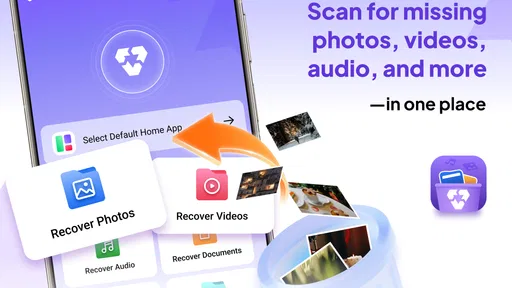
 Analysis by AppCompare
When a photo vanishes, my first instinct is to stop changing things on the phone and work out where the image went. A deleted picture might still be in a gallery’s trash folder, in a cloud backup, or on a memory card; those routes are often more dependable than trying a recovery tool first. Photo Recovery: Restore Images is aimed at the next step: looking through device storage for pictures that may still be recoverable. I see it as a practical option to try, not a promise that every lost file can be brought back.
That distinction matters because recovery depends on what happened after deletion. If new files have occupied the same storage space, an older image may no longer be intact. I would avoid taking more photos, downloading large files, or installing several recovery apps while searching. That small change in approach gives a recovery scan a better chance of finding something useful, and it also helps set realistic expectations before you begin.
Start with the simplest recovery route
Before opening a scanner, I would check the phone’s photo app for a recently deleted or trash area, then look at any cloud service I already use and the folders on an SD card, if one is involved. These checks are worth doing because they can restore the original file without relying on a scan. They also help narrow the search: if the image is absent from both the gallery and backups, a storage scan becomes a more sensible next move.
This is where the app’s narrow purpose is useful. It is a productivity app focused on photo recovery, rather than a general file manager or backup service. The developer is حدائق حوف, and the app is free. Its audience rating is Everyone, so the basic use case is accessible to a broad range of phone owners, including someone who simply wants to check for an accidentally removed picture without learning a complicated desktop tool.
How I would work through a scan
First, I would decide whether the missing picture was stored in internal phone storage or on a removable card. If I know it was on the card, including that location makes the search more focused; if I am unsure, checking both is a reasonable fallback. The original review describes a choice between internal storage and an SD card, which is a helpful distinction for people who move photos between phone memory and removable storage.
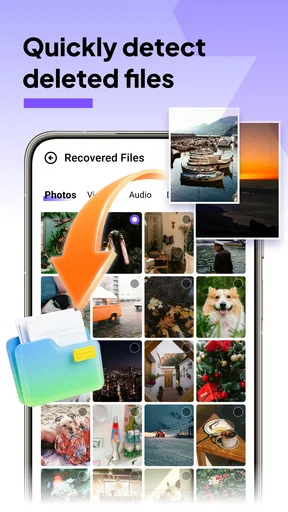
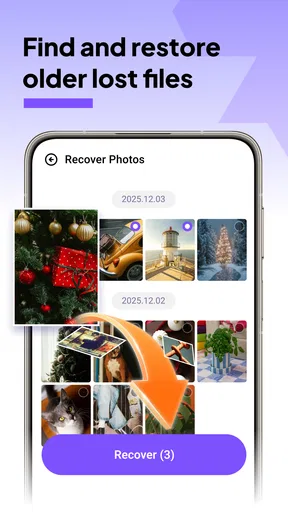
After a scan, I would use the date grouping to narrow down the results rather than opening every thumbnail at random. Think back to roughly when the photo was taken or deleted, then inspect the relevant group. A preview is useful here: I can check whether an image is the right subject before restoring it, instead of adding a pile of near-duplicates to the gallery. If several similar pictures appear, compare the actual image content rather than relying on the date alone.
For a realistic example, imagine clearing space during a commute and accidentally deleting a picture of a receipt you need to submit later. I would stop taking extra photos, check the gallery’s deleted-items area, and then try the relevant storage scan if the receipt is not there. A preview can help distinguish the receipt from other shots taken around the same time. Once found, I would confirm that the restored file opens and is readable before sending it onward or deleting any other copies.
Worth Reading Before You Choose

EA SPORTS FC Mobile 26 Is a Bigger Football Game, but It Takes Time

Flipboard Shows What News Apps Must Do Beyond the Feed

Switching to Android Auto Means Rethinking Your Driving Routine

Google Calendar Makes a Crowded Week Easier to Manage

Ludo King Makes the Most of the Minutes Between Plans

Baby Panda World Brings Quick Play to Modern Phones, but Its Game Library Feels Busy
What happens after you find a file
Recovery is only useful if the result can move into the workflow where it is needed. A restored photo might need to go back into a gallery, be attached to a message, or be copied somewhere safer. I would verify the file first, then make a separate backup if it matters. That handoff is easy to overlook when the relief of seeing a familiar thumbnail makes it feel as though the job is finished.
For important images, I would avoid treating a recovery result as the only copy. Keep the recovered version in a known folder and, when practical, place another copy in a trusted backup location. If the photo is a document, check that the text is legible at full size; a thumbnail can look convincing even when the recovered image is incomplete or too damaged to use. The app’s preview helps with identification, but checking the restored file in the app you plan to use is the more useful final test.
The usual alternatives solve different parts of this problem. A gallery trash folder or cloud backup is generally the first place I would look because it may preserve a deleted original directly. A desktop recovery utility can make more sense when a memory card is involved and the phone route does not find the file, especially if you are comfortable connecting storage to a computer. A dedicated recovery app is more convenient for an initial phone-based search, but it should not replace a backup habit or be treated as a forensic guarantee.
Where the process can fall short
The original review notes that results may be better on rooted devices and that a non-rooted phone can have limits. That is an important trade-off: rooting can change how much of a device’s storage a tool can inspect, but it is not a casual step I would take just to chase one photo. If your phone is not rooted, I would try the available scan and the simpler backup routes first, then decide whether the value of the missing file justifies more involved recovery options.
There is another practical limit: finding an image entry does not guarantee that the original file is complete or that it will restore in a usable form. Storage can be overwritten, and a scan can return items that are irrelevant to the photo you wanted. Date-based sorting and previews reduce the time spent searching, but they cannot undo overwritten data. If the picture is irreplaceable, I would stop using the device as much as possible and consider getting experienced help rather than repeatedly scanning and saving new files.
I would also keep the scope in mind. This is a photo-focused tool, so it is not the best choice if the missing item is a document, audio recording, or an entire folder that needs organized recovery. For those cases, a broader file-recovery workflow or a backup restore may fit better. Likewise, if you already have a complete cloud copy, restoring from that source is usually the cleaner route than scanning local storage.
Getting Started with Photo Recovery
First things first, downloading Photo Recovery: Restore Images is a breeze. Just head over to the Google Play Store or the App Store, hit download, and you’re good to go. The app is lightweight, so it won't hog your phone’s memory, which is a major plus.
Once you fire it up, you’re greeted with a straightforward interface. It’s not cluttered, which is great because who needs more stress when they’re trying to recover lost photos? Just a couple of taps and you’re on your way to retrieving those beloved images.
How Does It Work?
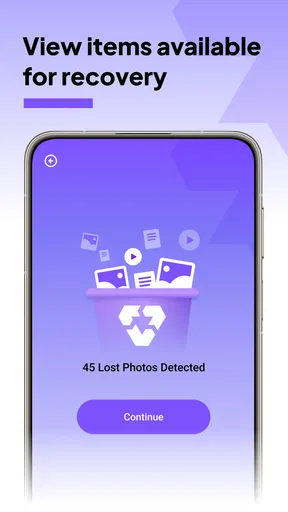
The app uses advanced algorithms to scan your device’s storage, including internal and external memory. It’s like having a mini forensic lab in your pocket. You can choose to scan just your internal storage or include your SD card too. I found this feature super handy, especially if you’re like me and have a ton of stuff stored all over the place.
After the scan, you’ll see a list of recoverable images. The app categorizes these by date, which makes it easier to sift through and find what you’re looking for. I was pleasantly surprised at how many photos the app was able to dredge up from the depths of my storage.
Performance and Features
Now, let’s talk about performance. The scans are fast. I mean, really fast. I was expecting to sit around for a bit while it did its thing, but it zipped through my storage in no time. Kudos to the developers for optimizing the app so well!
Another feature I love is the preview option. Before you restore any photo, you can preview it to make sure it’s the one you want. This saves you from cluttering your gallery with duplicates or unwanted images.
One thing to note is that the app works best on rooted devices. If your phone isn’t rooted, you might not be able to recover all the images. However, even on non-rooted devices, it does a pretty decent job.
User Experience
Using the app is a smooth experience. The developers have done a fantastic job making it user-friendly. The navigation is intuitive, and the lack of ads is a blessing. There’s nothing worse than being bombarded with ads when you’re in the middle of trying to recover something important.
The app also supports multiple languages, which is a nice touch. It means more people around the world can use it without language being a barrier.
Choosing it for the right job
I would recommend trying the app when the missing item is a photo stored on the phone or an SD card, and when checking the gallery and backups has not solved the problem. The current version is 1.4.5, and the app has over 100,000 installs, with an average rating of 3.9 from around 500 ratings. Those figures suggest that many people have tried it, but they do not tell me whether a particular deleted image will be recoverable; the storage situation matters more than popularity.
It is less suitable when you need a guaranteed recovery, when the phone is still being actively used after the deletion, or when the lost item is not an image. I would also skip rooting a device just to unlock a possible recovery advantage unless I understood the risks and had a strong reason. For a casual mistake, start with the least disruptive options; for a valuable photo with no backup, take care not to create more activity on the storage while you decide what to do.
One useful habit is to search by the likely date range, then preview only the candidates that match the event or subject. That is more efficient than restoring every result to sort later, and it limits clutter if the scan surfaces many images. Another is to keep a note of where the recovered image lands and check it immediately. That way, you are not left wondering whether the recovery completed when you later need to attach or share the file.
If a scan finds nothing, I would not interpret that as proof the picture never existed or that every recovery route is exhausted. I would revisit backups and removable storage, and, if the photo is important, stop experimenting on the device. Repeated attempts can cost time and may add activity without improving the chances. The right next step depends on how valuable the image is and whether a separate copy exists.
Final Thoughts
In a world where our phones are the keepers of our memories, having an app like Photo Recovery: Restore Images is almost essential. It’s efficient, easy to use, and most importantly, it works. I’d say it’s definitely worth a shot if you ever find yourself in the unfortunate situation of losing photos.
So, go ahead and give it a try. You might just find those long-lost photos you thought were gone forever. And remember, the next time you’re about to do a little spring cleaning on your phone, make sure you have this app ready to catch anything that might accidentally get swept away.
My recommendation is to treat it as a convenient first scan, not as a substitute for keeping copies of photos you cannot afford to lose. Its simple search flow, date grouping, and preview make it approachable when you are stressed and need to identify a particular image. But if a backup already contains the original, use that; if the file is critical and the scan comes up short, avoid turning a straightforward recovery attempt into risky trial and error.
For someone who wants a quick, phone-based check and understands that success depends on what remains in storage, it is a reasonable tool to have in mind. I would not rely on it as a safety net for every future deletion, but I would consider it when the simpler routes have failed and the missing photo is worth a careful search.
Pros
- Easy-to-use interface for quick navigation.
- Supports multiple file formats for recovery.
- No need for root access to recover files.
- Fast scanning with minimal battery usage.
- Preview feature before restoring files.
Cons
- Limited free version features.
- Ads can be intrusive during use.
- May not recover all lost files.
- Requires internet for some features.
- Occasional false positives in scans.
FAQs for Photo Recovery: Restore Images
How effective is Photo Recovery: Restore Images at recovering deleted photos?
Photo Recovery: Restore Images is designed to efficiently scan your device for lost or deleted photos. It uses advanced algorithms to locate and restore images that might have been accidentally removed. While it performs well in most cases, the recovery success can depend on how recently the photos were deleted and if the storage space has been overwritten.
What types of image formats does the app support for recovery?
The app supports a wide range of image formats, including popular ones like JPEG, PNG, and BMP. This versatility ensures that users can recover various types of image files, making it a reliable tool for retrieving photos from different sources and devices.
Is Photo Recovery: Restore Images easy to use for beginners?
Yes, the app is designed with a user-friendly interface that simplifies the recovery process. Even users with minimal technical expertise can navigate through the app easily. The step-by-step guide provided within the app ensures that users can perform recovery operations without any hassles.
Are there any limitations to the free version of the app?
The free version of Photo Recovery: Restore Images may have certain limitations, such as a cap on the number of photos you can recover or restrictions on advanced features. To unlock the full potential of the app, users might need to upgrade to the premium version, which offers unlimited recovery and additional functionalities.
Does using the app guarantee the privacy and security of my data?
Photo Recovery: Restore Images prioritizes user privacy and data security. The app does not store or share your recovered images with any third parties. Users can confidently use the app knowing that their personal data remains secure throughout the recovery process. Always ensure you download the app from trusted sources to maintain security.


